How to Connect
Trogg uses passkeys — sign in with Face ID, Touch ID or a security key. No seed phrase, no browser extension, and gas is free on the testnet.
Your wallet is created and secured by your device's passkey (WebAuthn). It is non-custodial: only your biometrics can authorize transactions, and there is no seed phrase to lose.
- 1
Step 1
Open the Connect dialog
Click “Connect” in the top-right of the navbar — or “Create account” on the Testnet page. A small dialog will slide in.
The Connect button lives in the navbar, top-right. - 2
Step 2
Choose “Create new wallet”
First time here? Pick “Create new wallet”. If you already made one on this device, choose “Connect existing wallet” instead (see the last step).
Create a fresh wallet, or reconnect an existing one. - 3
Step 3
Pick a trader name
Type any display name (e.g. “Cave Trader”). It is only a label for your passkey — you can leave the default and continue.
An optional name to recognise your passkey later. - 4
Step 4
Confirm with your passkey
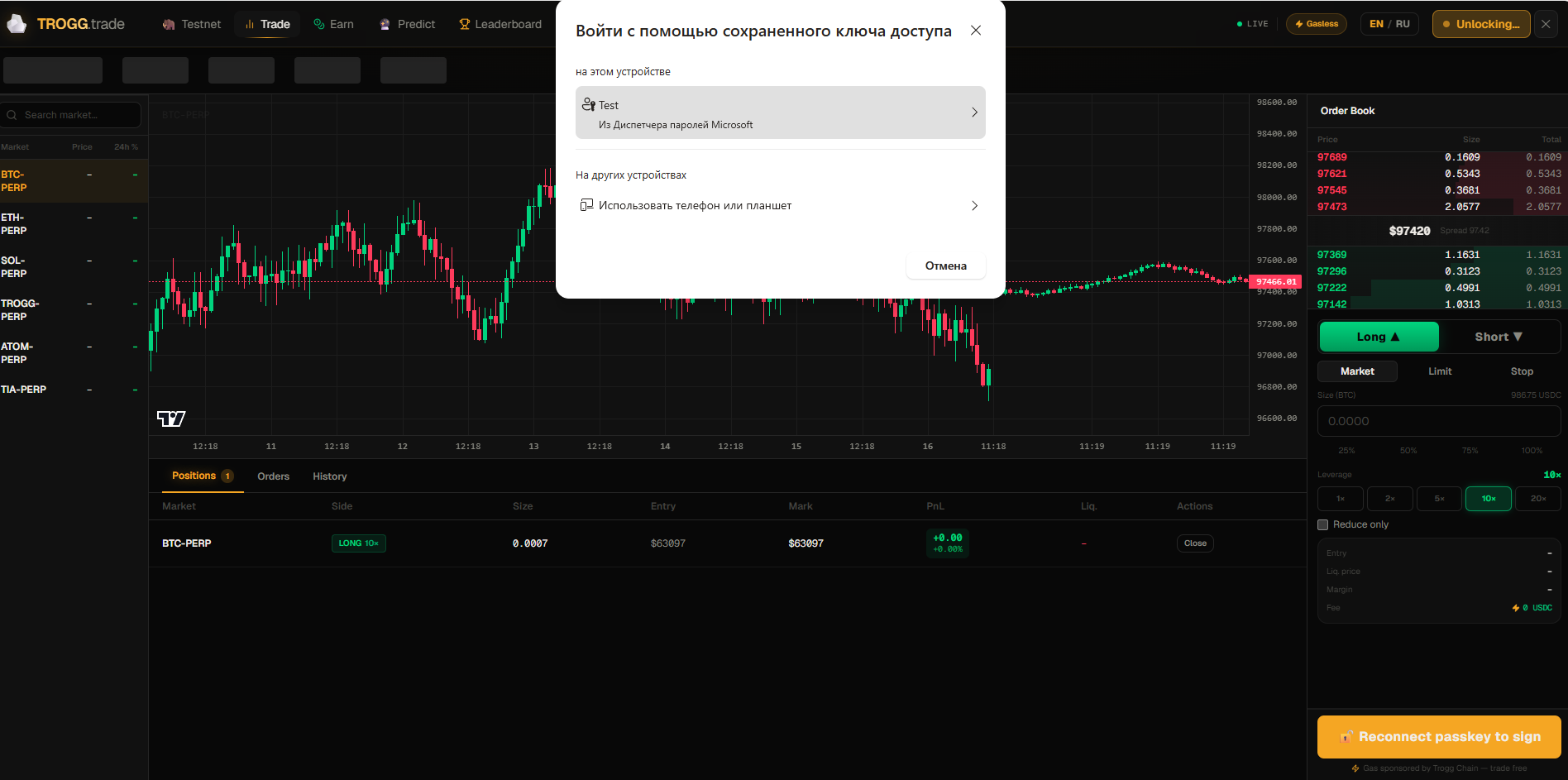
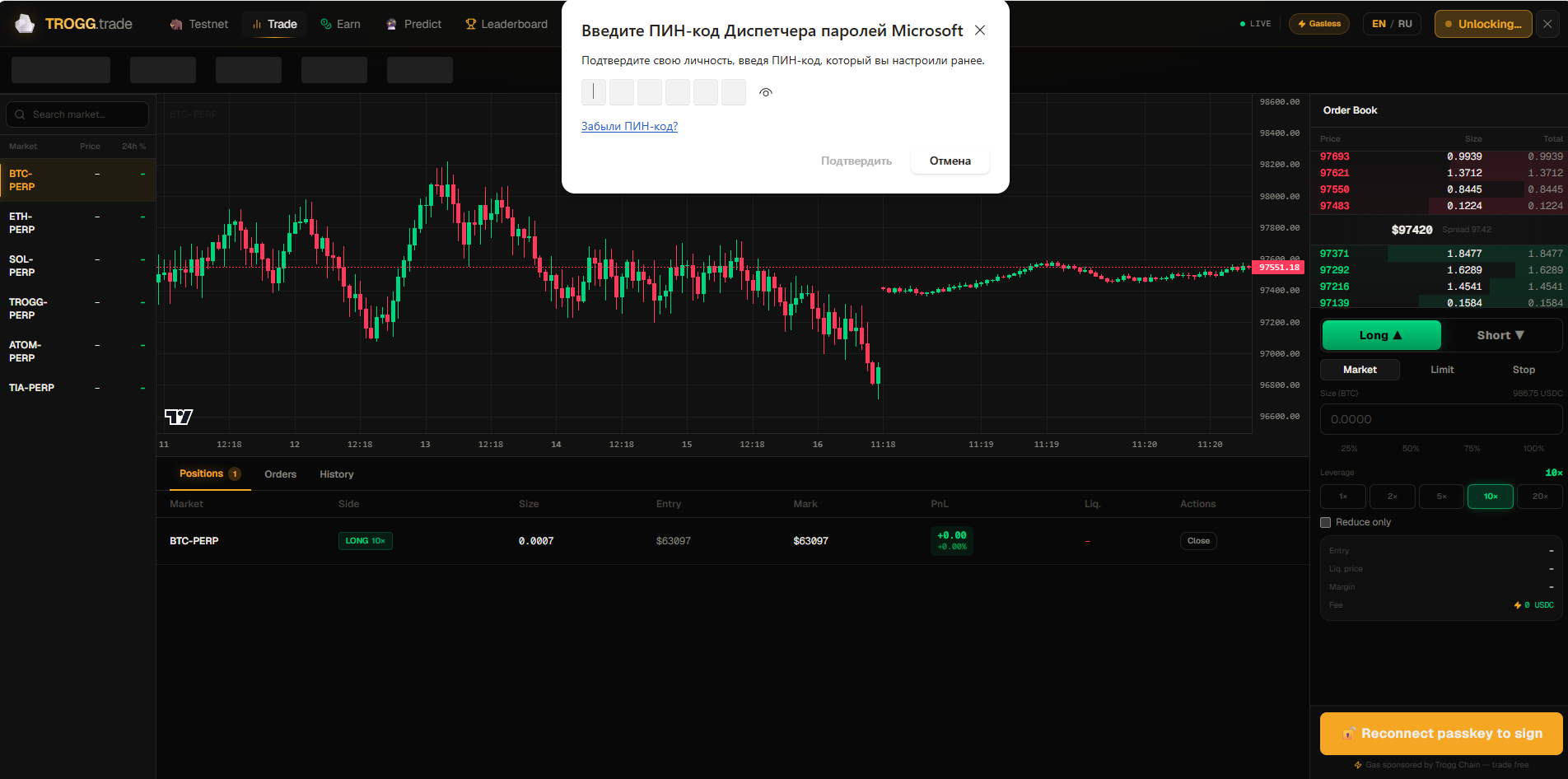
Your device prompts for Face ID, Touch ID, Windows Hello or a hardware security key. Approve it — this both creates the passkey and signs you in.
Approve the biometric prompt from your browser/OS. - 5
Step 5
Your cave wallet is ready
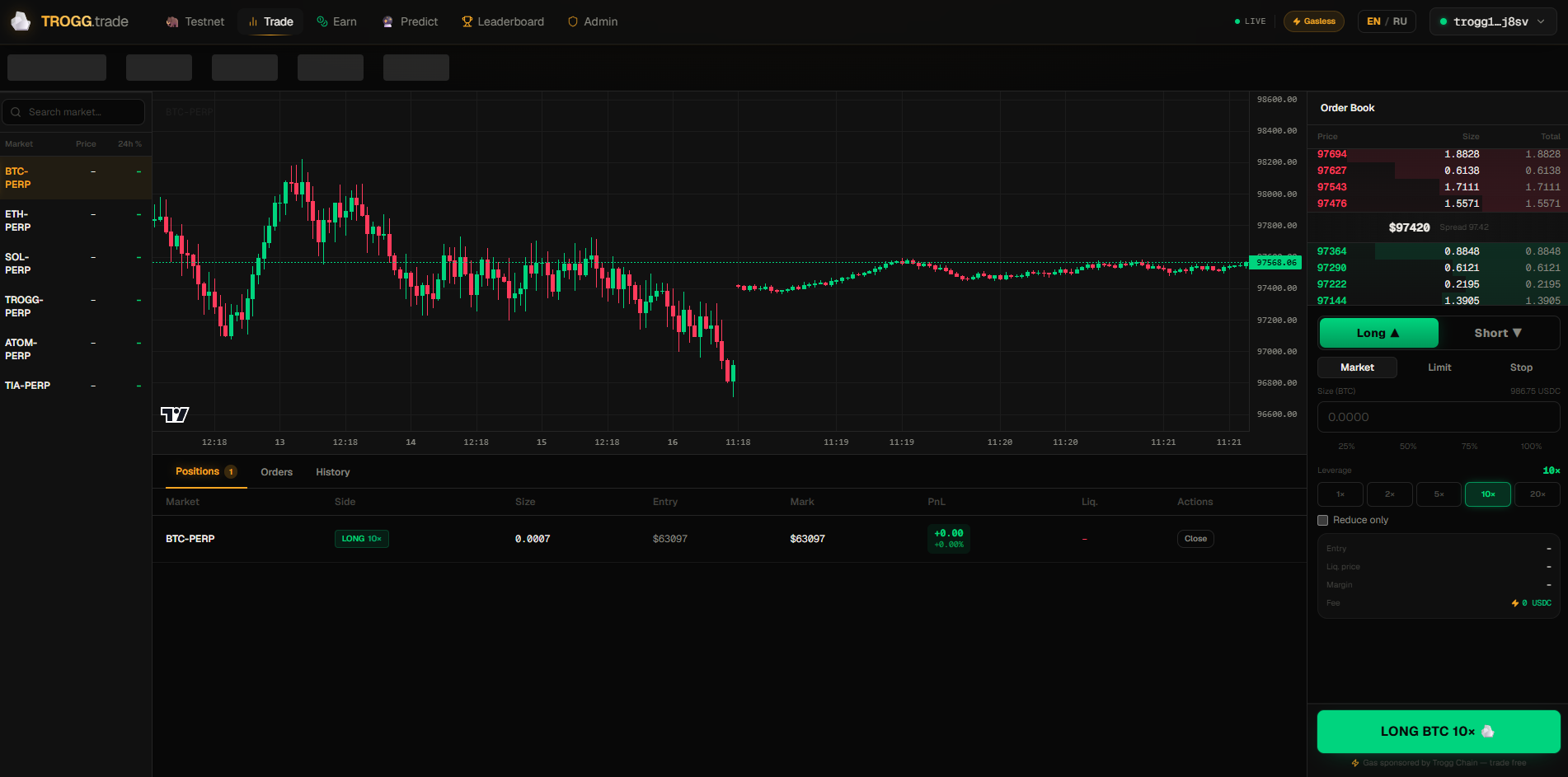
You’ll see your new trogg1… address. It’s gasless and non-custodial — you’re ready to trade. The address is now shown in the navbar wallet menu.
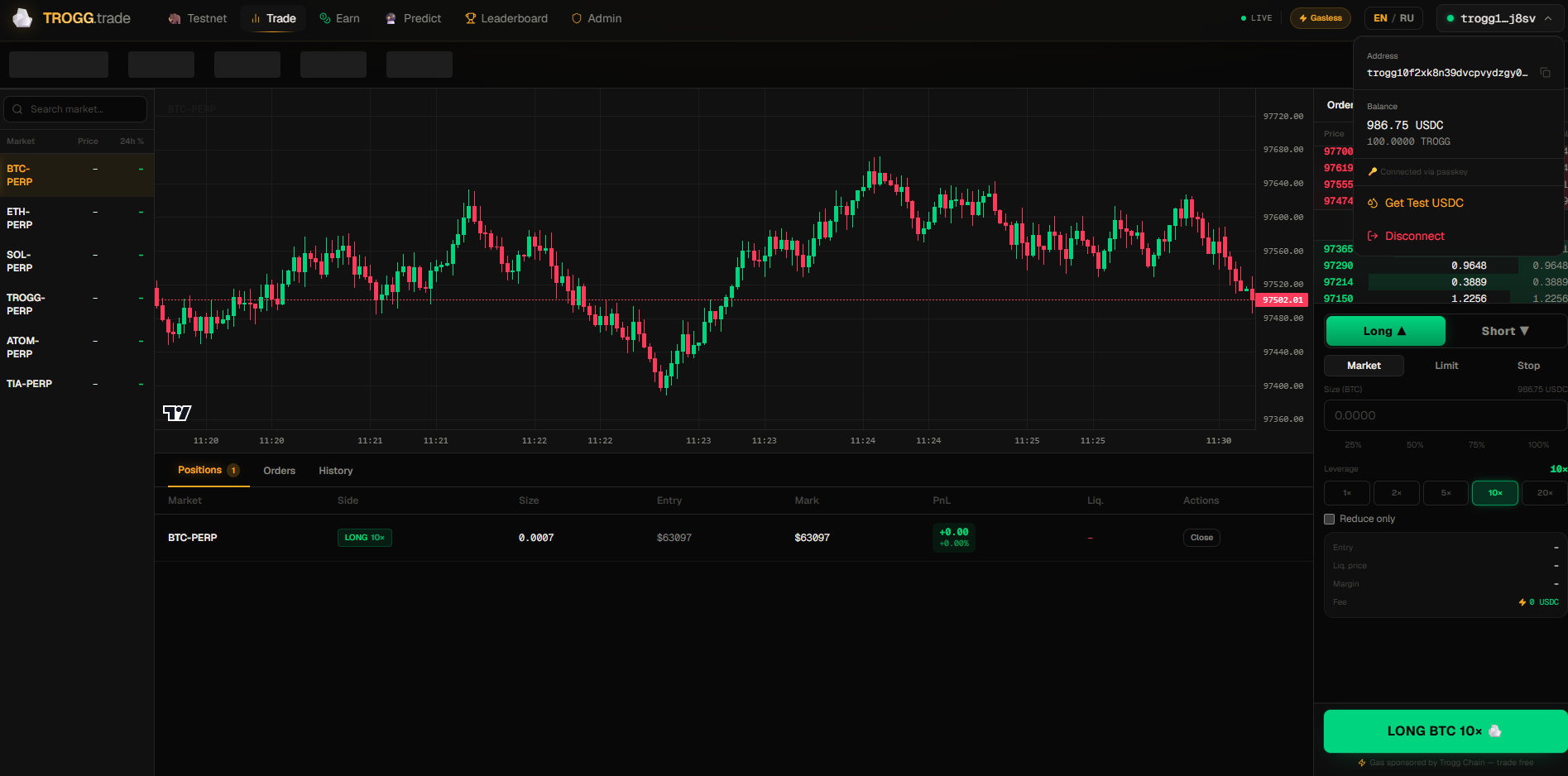
Success — your trogg1… address is live. - 6
Step 6
Get test tokens
Open the wallet menu and tap “Get Test USDC”, or go to the Testnet page and claim from the Faucet with your invite code. Tokens arrive in a few seconds.
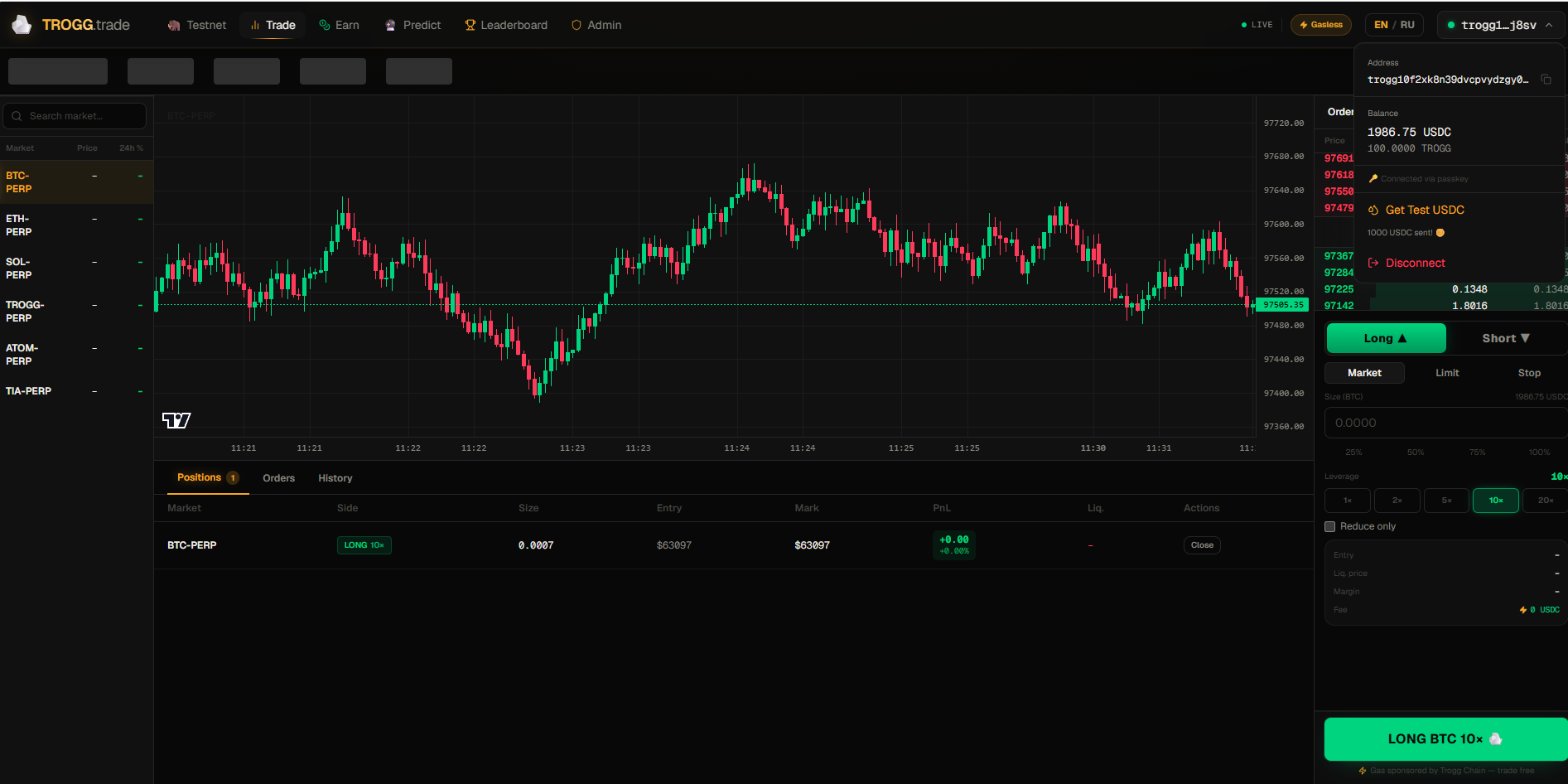
Claim test funds from the wallet menu or the faucet. - 7
Step 7
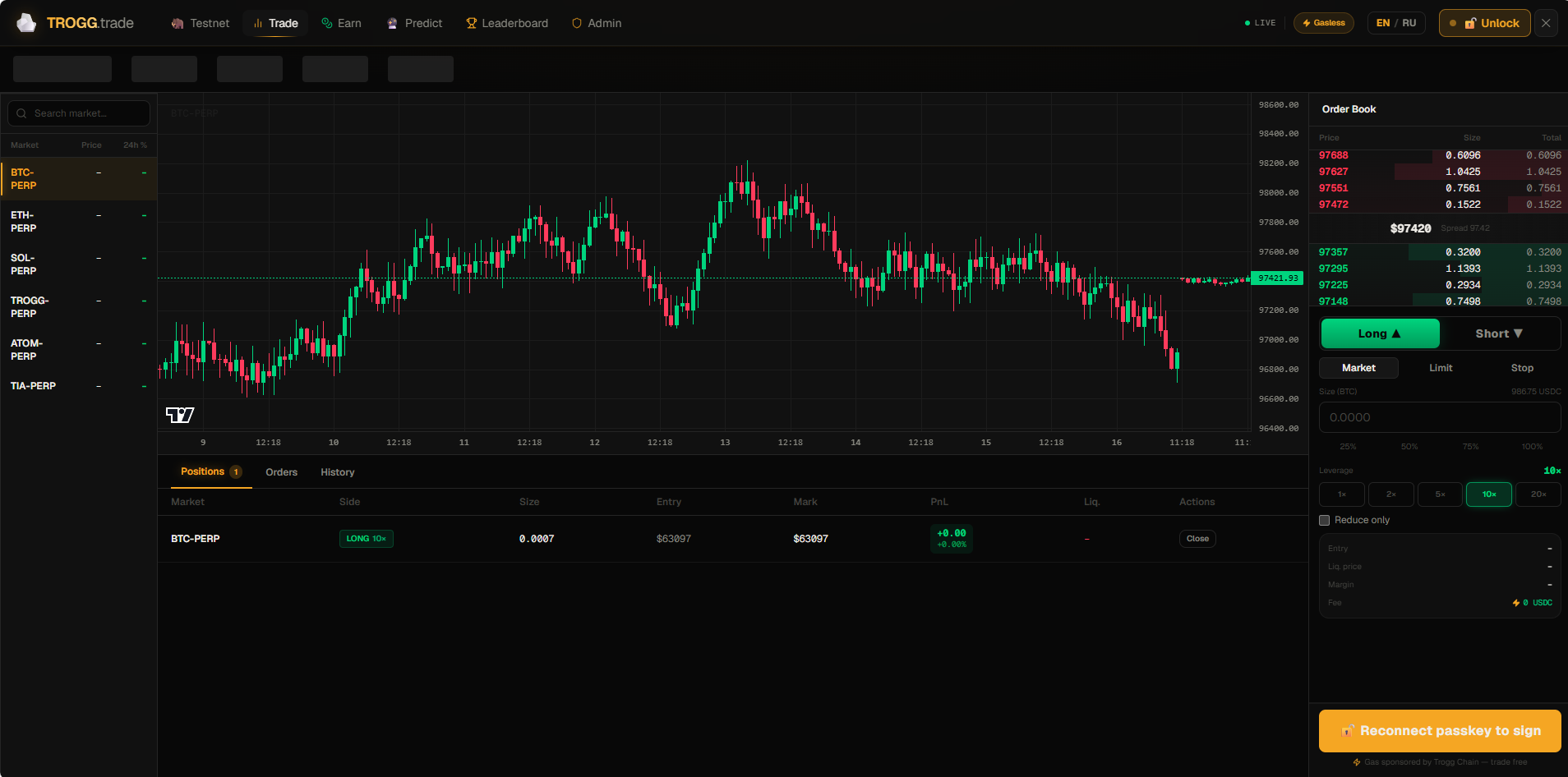
Coming back later? Reconnect
Passkeys live on your device, so after a page reload you simply re-authenticate. Open Connect → “Connect existing wallet” → approve with your passkey, and you’re back in.
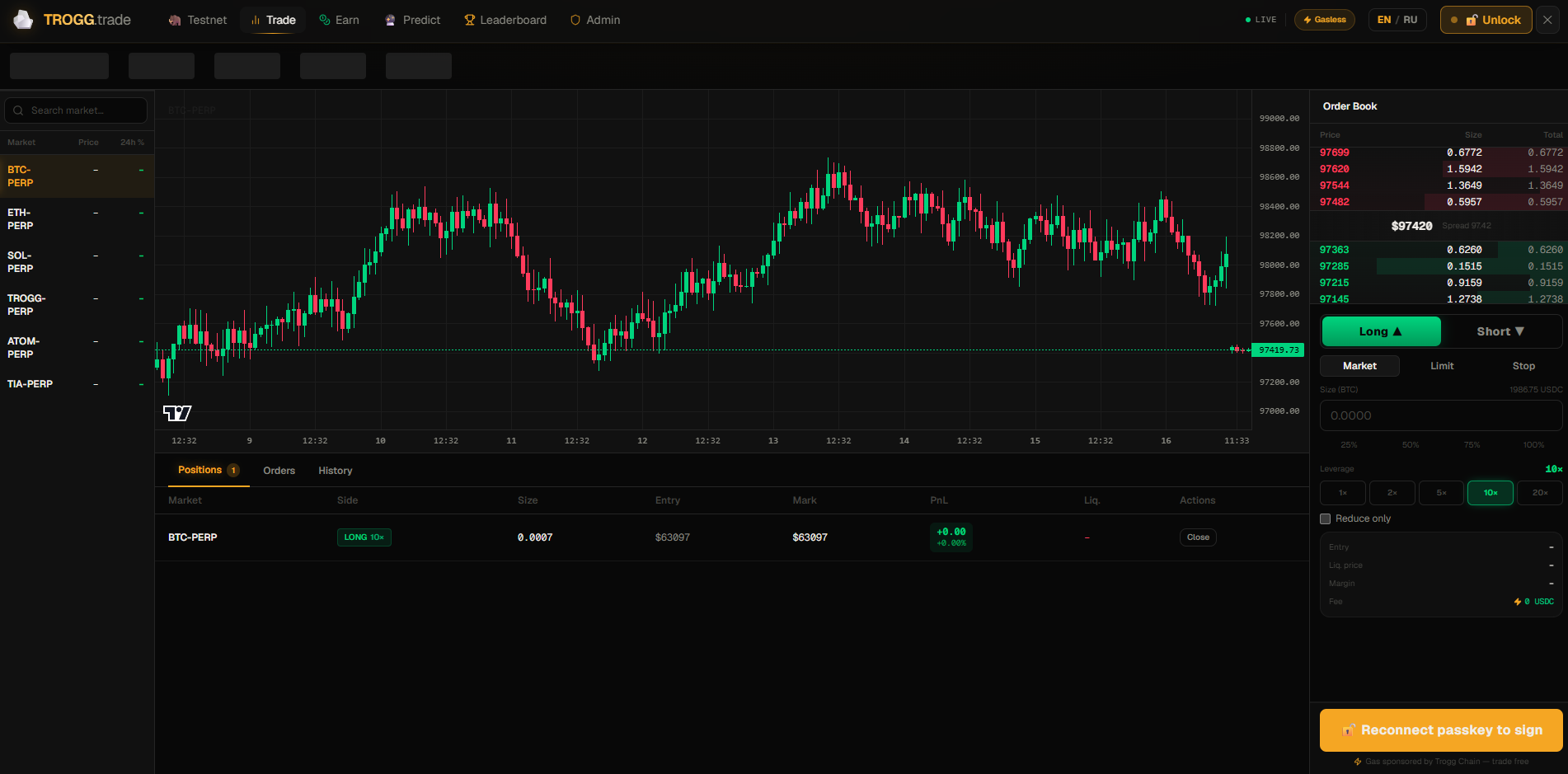
Returning users authenticate with the saved passkey.
Keep your passkey backed up
Your passkey is stored by your device (iCloud Keychain on Apple, Google Password Manager on Android/Chrome). If it syncs to your account, you can sign in from your other devices too. For security, the signing key is held only in memory — that’s why you re-authenticate after a reload.